Editing Scrobbles
Editing Scrobbles and Plays
Any Multi-Scrobbler data, for Sources or Clients, can be edited and replayed/retried to fix submissions errors downstream or generally correct your existing data.
It's important to recognize the data you are editing is only the data that Multi-Scrobbler stores in its own database. MS does not have the ability to modify external data like existing scrobbles in your Last.fm account.
Use the Pencil button on a Play to switch to Plain Text Edit mode.
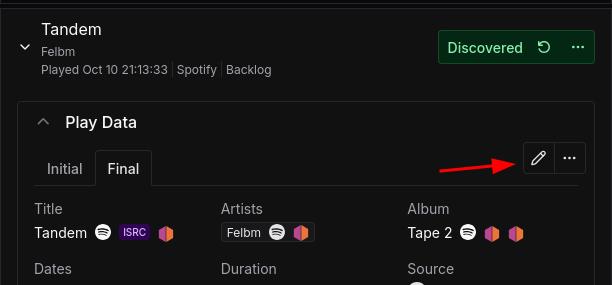
In Plain Text Edit mode you can modify the values for your Play/Scrobble data as well as add/modify/delete any related metadata IDs, like Muiscbrainz MBIDs.
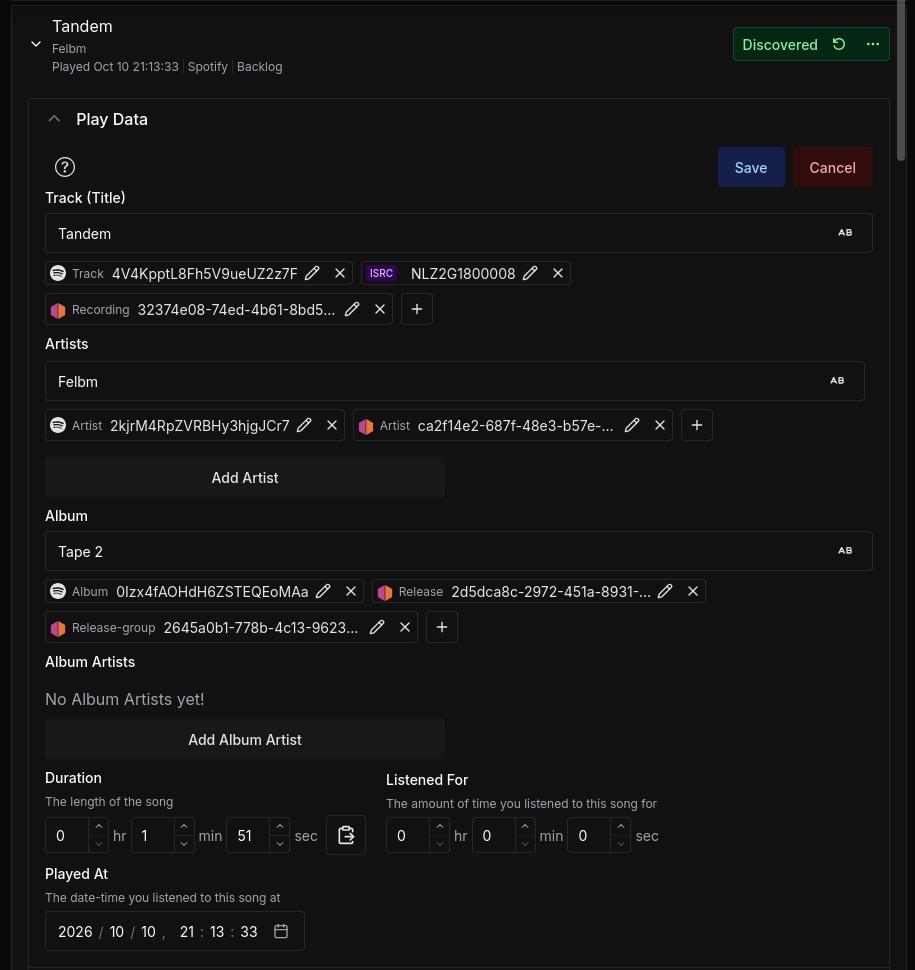
Clicking on the AB button in a field switches that field to Search Edit Mode. In this mode you can search metadata providers, like Musicbrainz and Spotify, for rich results which can automatically fill in metadata IDs and other fields like Album/Artist.
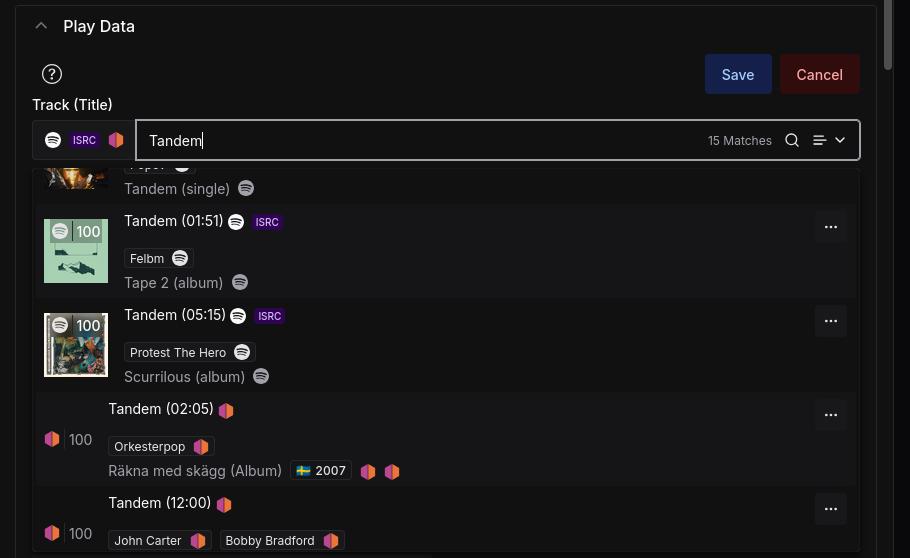
Return to Plain Text Edit mode using the 🔍 button in the field to fine tune your applied selection.
There are additional Search options available that are explained using the ? popup at the top of the Edit Mode card.
Search Providers
These providers are available to use for Search in edit mode:
If you are running Multi-Scrobbler behind a reverse proxy it is recommended to disable buffering to benefit from faster result responses.
Setup
All configuration of search providers is done using the same configuration as the respective docs for each of the above Scrobble Enhancement Stages.
- Musicbrainz and Rocksky providers are built-in and already configured. You do not need to do anything to use these immediately.
- Spotify requires API setup found in the Spotify Stage docs
The same default stage selection logic also applies to metadata providers.
Basically, if you setup a Stage for any of the above you automatically use it as a metadata provider as well. This also applies to any defaults you setup in stage configuration IE if you configure Musicbrainz release sorting then search results will reflect this sorting as well.
Preferred Providers
You can optionally use specific (or additional) transformer configs by defining which to use for metadata providers in your configuration.
If you define any preferred providers then Multi-Scrobbler will only use providers you have explicitly defined there. If you want to use any available, do not define this configuration.
This also means you can disable specific providers by omitted them entirely from your configuration here.
For a preferred provider configuration you can only define one of each type of Search Provider. In other words, you cannot have two Spotify providers.
The value for each provider type can be either:
- a
stringname of thetransformerto use (this can be a default stage likeMSDefaultorMSEnvor your own named transformer) - the boolean value
true. MS will use the configured stage order found here to determine which to use
- ENV
- AIO
Use the ENV key METADATA_PREFERRED_PROVIDERS with a comma-delimited list of key:value options.
EX:
To use:
- rocksky provider with named transformer
coolsky - musicbrainz provider with any configured stage
- do not use spotify
Your ENV would look like
METADATA_PREFERRED_PROVIDERS=rocksky:coolsky,musicbrainz:true
Set the preferred object on the top-level metadata object with a "key": "value" for each provider type and transformer to use.
EX:
To use:
- rocksky provider with named transformer
coolsky - musicbrainz provider with any configured stage
- do not use spotify
Your config would contain this:
{
  // ...
  "metadata": {
    "preferred": {
      "rocksky": "coolsky",
      "musicbrainz": true
    }
  }
}